
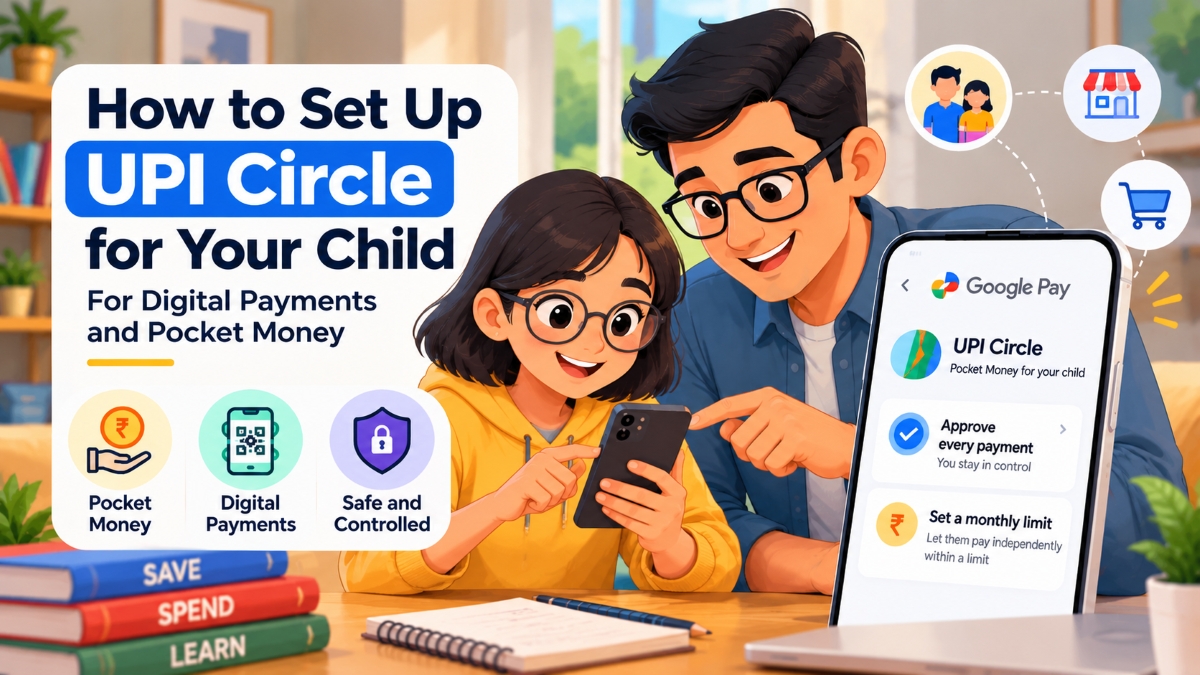
When I was growing up, managing pocket money was a fairly straightforward affair. You received some cash, decided what to spend it on, and occasionally discovered (and learnt a valuable lesson) that you had run out before the next allowance arrived.
However, children today are growing up in a very different environment. Moreover, they see us scan QR codes for groceries and use UPI, going days without cash. Though sometimes, we spend money so conveniently that we hardly consider how much we are spending.
As my children grow older, I have been thinking about introducing regular pocket money to help them learn budgeting, saving and financial responsibility. At the same time, I would like them to become familiar with digital payments, including Google Pay, while understanding the risks involved.
I suspect many Indian parents are thinking along similar lines. Giving children cash is relatively simple. Giving them access to digital payments raises more questions. Do they need a bank account? Can they use UPI legally? Should parents approve every payment? And how do we prevent a convenient payment method from becoming an invitation to spend without thinking?
I recently set up Google’s Pocket Money feature using UPI Circle. I found this be an interesting way to tackle the problem, though parents should know a few things before starting.
What is UPI Circle, and why should parents consider it?
UPI Circle is a facility developed by the National Payments Corporation of India (NPCI). It allows a primary user to authorise another person, known as a secondary user, to make payments using the primary user’s bank account, subject to the applicable permissions and limits.
The important distinction is that the secondary user does not necessarily need a bank account linked to UPI.
For parents, this opens up an interesting possibility. A child can learn to make digital payments using their own phone, while the parent retains control over how those payments are authorised and funded.
Google Pay offers this facility through a feature called Pocket Money on UPI Circle.
There are two ways to use it:
- Approve every payment: Your child initiates a payment, but you must approve it before the money is transferred.
- Set a monthly limit: Your child can make payments independently within the limit you authorise.
The maximum permitted monthly limit under full delegation is ₹15,000, with a maximum of ₹5,000 per transaction. These are regulatory limits, not recommended pocket-money amounts. Most parents introducing the facility to children should start with a much smaller budget.
For more information, see the official NPCI guide to UPI Circle.
Before you begin: What do you need?
For the Google Pay Pocket Money setup described here, you will need:
- A working Google Pay account linked to an eligible bank account.
- Your child’s phone with Google Pay installed and registered using their mobile number.
- Your child’s number saved in your phone contacts.
- App lock enabled on your child’s Google Pay app.
- A UPI Circle ID or QR code generated on your child’s phone.
- For the monthly-limit option, the additional identity details requested during setup.
Google Pay’s teen offering is intended for users aged 13 to 18. Check the current eligibility requirements before proceeding, and do not try to bypass the app’s age restrictions for younger children.
You should also check whether your bank account is eligible for UPI Circle. Google Pay’s feature availability can vary, and the instructions below may differ slightly depending on your app version.
Step 1: Generate a UPI Circle ID on your child’s phone
Start with your child’s phone, rather than your own.
- Open Google Pay on your child’s phone.
- Tap the profile picture in the top-right corner.
- Look for UPI Circle.
- Select Request someone to set up.
- Tap Continue.
Google Pay will then generate a UPI Circle ID and a QR code that can be used to establish the connection with the parent’s account.
Your child can share the QR code with you. Alternatively, you may be able to find the child’s UPI ID when adding them from your own Google Pay account.
If the option does not appear, follow the instructions displayed in the app. The app may ask your child to enable its security lock first.
Step 2: Set up Pocket Money on your phone
Now switch to your own phone.
- Open Google Pay and tap your profile picture.
- Scroll down to UPI Circle.
- Select Set up pocket money on UPI Circle.
- Select your child’s name or enter their phone number. You may also be able to scan the QR code generated in Step 1.
- Confirm the child’s UPI ID or other identifying details displayed by the app.
The app will then ask you to choose the type of delegation you want to enable.
Option A: Approve every payment
This is the more cautious option for a child who is learning to use digital payments.
Your child can scan a merchant’s QR code, enter the amount and submit a payment request. You receive the request on your phone and decide whether to approve it. The payment is completed only after you approve it using your UPI PIN.
For example, suppose your child wants to buy a notebook costing ₹80. They can initiate the payment themselves, but you will have to approve it before the money leaves your account. This gives your child experience in using UPI while allowing you to review each purchase.
Option B: Set a monthly limit
If you are comfortable allowing your child more independence, you can authorise a monthly spending limit.
During setup, select Set a monthly limit or the equivalent wording shown in your app. Enter the amount you are comfortable allowing your child to spend.
Google Pay will then ask you to provide additional details, including your relationship with the child and the government-issued identity details required for verification. Select the bank account from which the payments should be funded and complete the authorisation using your UPI PIN.
Once this is configured, your child can make eligible payments independently within the authorised limit. You receive transaction notifications, allowing you to keep track of spending.
For a child who is new to digital payments, I would begin with approval for every transaction. Once the child has demonstrated responsible behaviour, a limited amount of independent spending can be considered.
Step 3: Accept the invitation on your child’s phone
After you send the invitation, your child needs to accept it.
- Open Google Pay on the child’s phone.
- Go to the profile section and select UPI Circle.
- Find the pending invitation.
- Tap Accept and follow any additional instructions.
Your child must also have the required app lock enabled. This is an important security requirement for using Pocket Money.
Google Pay documents a 30-minute cooling period before the first payment under the monthly-limit option. The approval-based option has different initial restrictions, so check the instructions displayed in your app.
Once the setup is complete, your child should be able to use UPI Circle for eligible merchant payments.
For the full official instructions, refer to Google Pay’s Pocket Money on UPI Circle guide.
Step 4: What if you do not have an @okaxis UPI ID?
This was one of the practical details I encountered while exploring the setup.
Google Pay currently requires the parent to have an @okaxis UPI ID linked to the bank account being used for UPI Circle. If you see an error stating that your existing UPI ID is not eligible, this could be the reason.
The good news is that you do not necessarily need to open an account with Axis Bank or change your existing bank account.
Google Pay allows eligible users to add an additional UPI ID to an existing linked bank account.
Here is how to check.
- Open Google Pay on your phone.
- Tap your profile picture.
- Under Payment methods, select Bank account.
- Choose the bank account you intend to use for your child’s pocket money.
- Look for Manage UPI IDs. Depending on the app version, you may see a label indicating how many UPI IDs have already been added.
- Check whether one of the listed IDs ends in @okaxis.
- If it is available but has not been added, tap the Add (+) option beside it.
- Complete the verification process. Google Pay may send a verification SMS from your phone.
Once the additional ID has been activated, return to the UPI Circle setup and try again.
This requirement is specific to Google Pay’s implementation. It should not be assumed that every UPI app uses the same UPI handle or has the same setup process.
If you still see an error, check Google’s help page for the latest supported-bank requirements and troubleshooting instructions.
Step 5: How much pocket money should you give your child?
Getting the technology to work is only half the exercise. The other half is deciding how much money to make available and what the child should learn from it.
There is no universally correct allowance. It depends on the child’s age, the family’s budget and the expenses the allowance is intended to cover.
As an illustration, suppose you decide to give your child ₹300 every week.
You might agree on a simple allocation:
| Purpose | Weekly amount |
| Everyday discretionary spending | ₹150 |
| Saving towards a larger purchase | ₹100 |
| Giving or other agreed purposes | ₹50 |
| Total | ₹300 |
These figures are only an example. You can change the amounts to suit your circumstances, and younger children may need more help making these decisions.
The important point is that a child should understand the budget before receiving access to digital payments.
It is also worth explaining that the monthly limit in UPI Circle is not a separate wallet balance. It is permission to spend money from your bank account up to a specified amount.
If you authorise ₹1,200 for a month and your child spends ₹800, the remaining ₹400 does not automatically become savings that the child owns. Nor does an unused allowance automatically roll over into the next month.
If you want to reward saving, you can separately transfer the agreed amount to the child’s bank account, if they have one, or give it to them in cash. This keeps the distinction between spending authority and actual savings clear.
Step 6: What happens if the monthly allowance runs out?
Suppose your child has been given a monthly limit and has used it up by the third week. They now want to buy something else.
Under the monthly-limit arrangement, they cannot simply continue making independent payments beyond the authorised limit.
This is an opportunity to discuss budgeting and planning. If the allowance was meant to last the entire month, what went wrong? Was there an unexpected expense? Did the child spend too much early on? Could some purchases have waited?
If you decide that additional money is justified, check the options available in your Google Pay app. Google’s current guidance states that changing or removing a monthly limit may require you to remove the existing secondary-user relationship and set it up again with the revised limit.
The exact process should be confirmed in the app before making changes. Do not assume that you can always increase the limit instantly or switch delegation modes without reconfiguring the relationship.
I would also avoid automatically topping up the allowance whenever it runs out. If every shortfall is immediately covered, the child may never experience the consequences of spending too quickly.
An exception for a genuine need is a parent’s decision. The key is to distinguish a necessary expense from a purchase that could have been planned better.
Step 7: Teach digital payment safety alongside the setup
Giving a child access to UPI should come with a conversation about security.
These rules are worth explaining before the first transaction:
- Never share a UPI PIN or OTP. Not even with a friend or someone claiming to represent a bank or payment app.
- Receiving money does not require entering a UPI PIN. Be suspicious of anyone who says otherwise.
- Check the recipient and amount. A QR code is not proof that a payment request is legitimate.
- Do not approve unexpected requests. If someone asks for money urgently, verify the request with a parent first.
- Report mistakes immediately. If a phone is lost, or a suspicious transaction appears or money is sent to the wrong recipient, then tell a parent immediately.
- Protect the phone. Keep its screen lock and Google Pay’s app lock enabled.
Parents should follow these practices themselves. Children learn a great deal by observing how adults handle payments.
It is also important to remember that a successful UPI payment may not be reversible simply because the payer made a mistake. Prevention and prompt reporting matter.
Is UPI Circle the right choice for every child?
Not necessarily.
For younger children, cash remains a useful way to learn counting, budgeting and the consequences of spending. A simple notebook can help them track what they receive, what they spend and what they save.
For older children who are ready for greater responsibility, UPI Circle offers a practical way to learn digital payments without requiring them to have their own linked bank account.
I would approach it gradually:
- Start with a predictable pocket-money allowance.
- Introduce a savings goal and discuss spending choices.
- Demonstrate how digital payments work.
- Begin with approval for every payment.
- Consider a small independent spending limit once the child is ready.
- Review transactions together periodically without turning every purchase into an argument.
The appropriate age and degree of independence will differ from one child to another. Parents should also check the applicable eligibility requirements, their bank’s conditions and the payment provider’s current rules.
Let children learn to manage money before they have to manage it alone
I found the UPI Circle concept worth exploring because it provides a middle ground between handing children cash and giving them unrestricted access to a bank account.
It allows parents to introduce digital payments in stages while retaining oversight. The setup does involve a few practical details, particularly the required UPI ID and the verification process, but Google’s official instructions provide a useful starting point.
For me, the bigger objective is to help children develop sound financial habits. Children must learn that money is finite, that every purchase requires choices, and that saving typically demands patience.
Digital payments are likely to remain a part of their everyday lives. Teaching them to use these tools responsibly is therefore a useful part of financial education.
I plan to approach pocket money as a combination of cash, digital payments and regular conversations about money. The precise arrangement can evolve as the children grow older and demonstrate that they are ready for greater independence.
How are you teaching your children to manage money? Do you prefer cash, digital pocket money or a combination of both? And would you be comfortable allowing your child to make independent UPI payments within a monthly limit? I would like to hear how other parents are approaching this.
 Bhavya Banga